> ## Documentation Index
> Fetch the complete documentation index at: https://docs.dubot.ai/llms.txt
> Use this file to discover all available pages before exploring further.
# Preview with the browser extension
> Run a current Test session against a target URL
The browser extension provides a temporary Test session against a product page. It loads the saved
Test configuration without changing Production.
## Before you start
* Confirm that browser-extension access is enabled and the extension is provisioned for your
workspace.
* Sign in to both the Dubot dashboard and the customer product.
* Save the Test configuration you want to exercise.
* Choose a safe page and example account where the workflow cannot affect real customer data.
Extension access is provisioned during the current rollout. If it is not available to the
workspace or browser profile, ask your Dubot contact for the supported installation path.
## Start a Test session
Open **Workspace settings** and scroll to **Test session**. Enter the safe product URL you want to
preview.
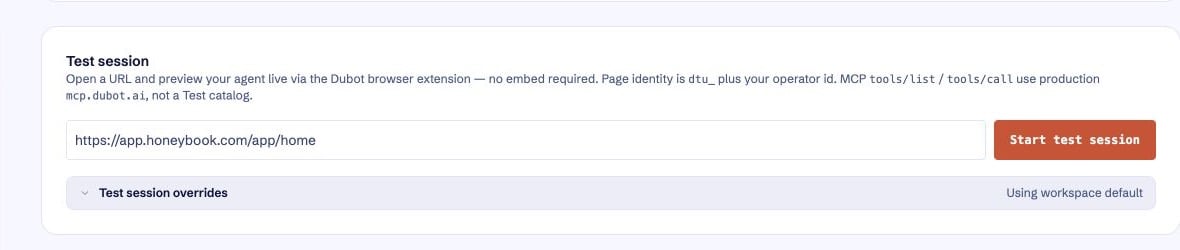 1. Confirm the target URL in the **Test session** card.
2. If needed, open **Test session overrides**. The effective inject script can inherit the workspace
setting or use your personal override. **Starter (not saved)** means Dubot is showing its built-in
starter script and no script has been stored. Select **Save my overrides** only when you intend to
keep a personal script or auto-open choice.
3. Optionally enable **Auto-open agent after inject**, choose an agent, and choose **Bubble**,
**Sidebar**, or **Fullscreen** for its presentation. With auto-open off, the extension
initializes the page but does not open the agent.
4. Select **Start test session**. The extension navigates to the target URL, injects the test setup,
and reports the session status on the page and in the extension popup.
Use the page as a real user would, including identity and page context checks. When finished, choose
**End test session**. The indicator reports active, error, or ended status.
Personal overrides apply only to your operator account. An administrator can deliberately choose
**Save as workspace default** to replace the shared script for teammates who inherit it. Promoting a
script clears the administrator's personal script overlay afterward, while auto-open remains a
personal setting. Review the script before changing the workspace default.
Review [Identity and page context](/sdk/identity-context) before testing customer-specific behavior.
The optional auto-open selection uses an existing [Wizard](/product/wizards); the Resource Center
has a separate Test session entry point in its [Agent configuration](/guides/configure-resource-center).
A Test session is not Action Discovery and is not guide authoring. Action Discovery investigates
product actions. Guide authoring records or reviews Guidance content. This flow previews an existing
Dubot runtime configuration on a target page.
Standby pages skip test-session overrides and initialization. A target URL and a supported browser
page are required for an active session.
## Expected result
The target page reports an active Test session and loads the saved Test configuration without
changing Production. Ending the session removes that temporary preview state.
If the session is active but no surface appears, follow
[Troubleshoot the browser SDK](/sdk/troubleshooting#when-nothing-appears). Action Discovery is a
separate [controlled-rollout workflow](/guides/add-actions-with-extension).
1. Confirm the target URL in the **Test session** card.
2. If needed, open **Test session overrides**. The effective inject script can inherit the workspace
setting or use your personal override. **Starter (not saved)** means Dubot is showing its built-in
starter script and no script has been stored. Select **Save my overrides** only when you intend to
keep a personal script or auto-open choice.
3. Optionally enable **Auto-open agent after inject**, choose an agent, and choose **Bubble**,
**Sidebar**, or **Fullscreen** for its presentation. With auto-open off, the extension
initializes the page but does not open the agent.
4. Select **Start test session**. The extension navigates to the target URL, injects the test setup,
and reports the session status on the page and in the extension popup.
Use the page as a real user would, including identity and page context checks. When finished, choose
**End test session**. The indicator reports active, error, or ended status.
Personal overrides apply only to your operator account. An administrator can deliberately choose
**Save as workspace default** to replace the shared script for teammates who inherit it. Promoting a
script clears the administrator's personal script overlay afterward, while auto-open remains a
personal setting. Review the script before changing the workspace default.
Review [Identity and page context](/sdk/identity-context) before testing customer-specific behavior.
The optional auto-open selection uses an existing [Wizard](/product/wizards); the Resource Center
has a separate Test session entry point in its [Agent configuration](/guides/configure-resource-center).
A Test session is not Action Discovery and is not guide authoring. Action Discovery investigates
product actions. Guide authoring records or reviews Guidance content. This flow previews an existing
Dubot runtime configuration on a target page.
Standby pages skip test-session overrides and initialization. A target URL and a supported browser
page are required for an active session.
## Expected result
The target page reports an active Test session and loads the saved Test configuration without
changing Production. Ending the session removes that temporary preview state.
If the session is active but no surface appears, follow
[Troubleshoot the browser SDK](/sdk/troubleshooting#when-nothing-appears). Action Discovery is a
separate [controlled-rollout workflow](/guides/add-actions-with-extension).