> ## Documentation Index
> Fetch the complete documentation index at: https://docs.dubot.ai/llms.txt
> Use this file to discover all available pages before exploring further.
# Set up your brand
> Create, configure, preview, and publish a workspace brand
Brand controls the look and feel shared by Dubot surfaces. A workspace can have multiple brands,
with one selected as the default.
## 1. Create or select a brand
Open **Brand**. Select an existing brand from the brand switcher, or choose **New brand** and name
it. To make the selected brand the workspace default, use its menu and choose **Set as default**.
## 2. Configure the tabs
Use the tabs that are implemented in the editor:
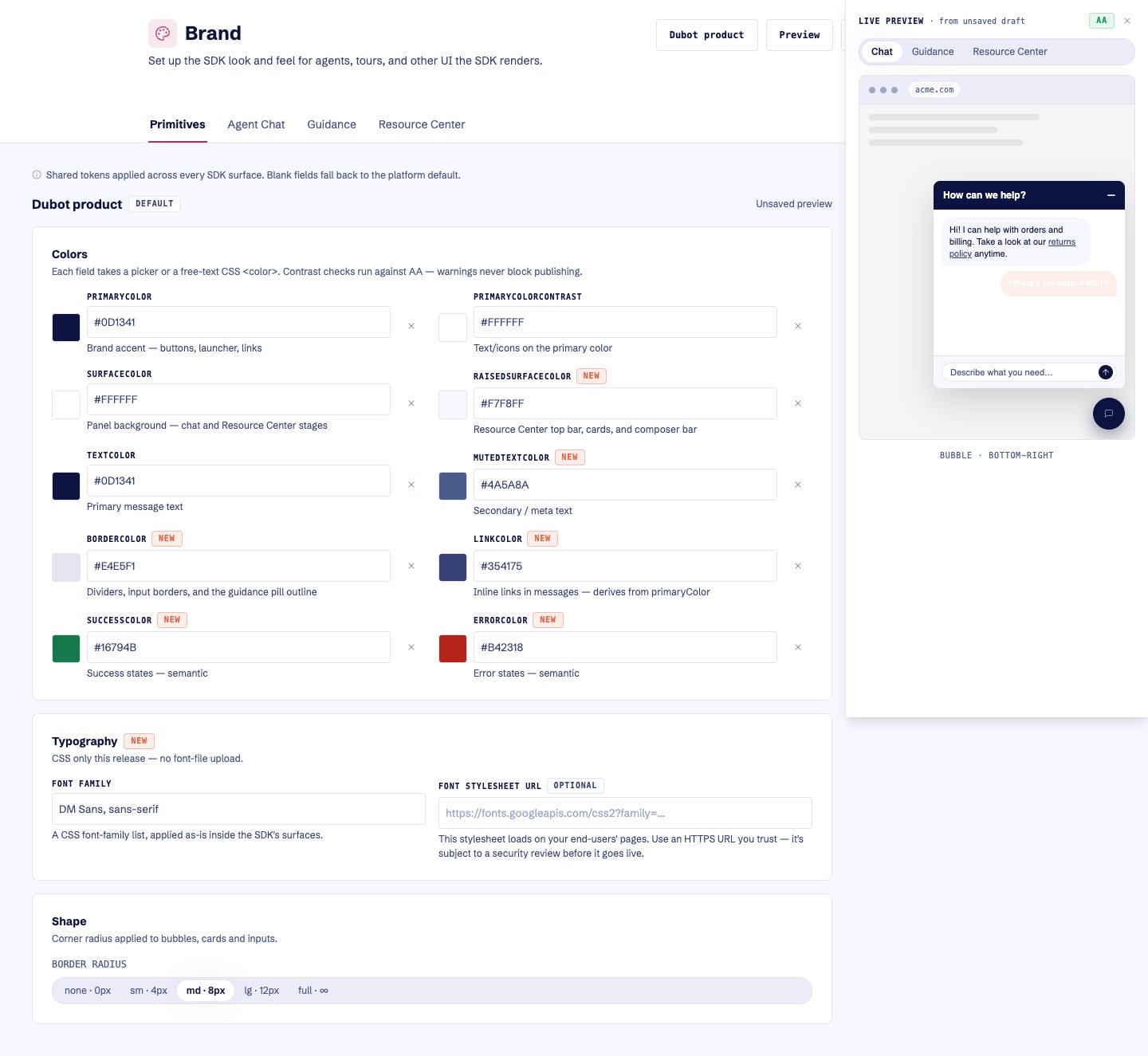
* **Primitives** controls the shared color, typography, shape, and other base tokens.
* **Agent Chat** controls chat-specific branding.
* **Guidance** controls the Guidance overlay tokens.
* **Resource Center** is a surface view with no separate token set. Its specific branding comes
from Primitives.
## 3. Preview and save
Select **Preview** to inspect the live preview. Switch its scene to Chat, Guidance, or Resource
Center as needed. Make edits, then select **Save draft**.
 Check Guidance against both pale and dark host-product backgrounds. Its surface should remain
visibly separate from the page, with readable text, a clear boundary, and enough shadow or outline
to preserve the floating overlay. Keep coral for intentional interaction and status cues rather
than using it as a large background treatment.
## 4. Publish
Select **Publish** after saving. Publishing saves the current editor state first, then publishes
the brand version. Production uses the published brand. Selecting a default brand changes which
brand the workspace resolves by default; it does not itself publish unsaved token edits.
Blank fields inherit the platform default. Use **Reset to defaults** when you want to clear every
authored token while preserving the brand identity and version history.
## Expected result
The selected scenes match the intended workspace brand in Preview and Test. After publishing, the
resolved default or explicitly selected brand appears consistently on the customer surfaces that
use it. Changing the default alone does not publish unsaved token changes.
Next, verify the brand inside the [Resource Center](/guides/configure-resource-center), a
[Wizard](/guides/build-and-publish-wizard), and [Guidance](/guides/enable-guidance) at their real
customer sizes.
Check Guidance against both pale and dark host-product backgrounds. Its surface should remain
visibly separate from the page, with readable text, a clear boundary, and enough shadow or outline
to preserve the floating overlay. Keep coral for intentional interaction and status cues rather
than using it as a large background treatment.
## 4. Publish
Select **Publish** after saving. Publishing saves the current editor state first, then publishes
the brand version. Production uses the published brand. Selecting a default brand changes which
brand the workspace resolves by default; it does not itself publish unsaved token edits.
Blank fields inherit the platform default. Use **Reset to defaults** when you want to clear every
authored token while preserving the brand identity and version history.
## Expected result
The selected scenes match the intended workspace brand in Preview and Test. After publishing, the
resolved default or explicitly selected brand appears consistently on the customer surfaces that
use it. Changing the default alone does not publish unsaved token changes.
Next, verify the brand inside the [Resource Center](/guides/configure-resource-center), a
[Wizard](/guides/build-and-publish-wizard), and [Guidance](/guides/enable-guidance) at their real
customer sizes.