> ## Documentation Index
> Fetch the complete documentation index at: https://docs.dubot.ai/llms.txt
> Use this file to discover all available pages before exploring further.
# Brand
> Apply workspace brand tokens across Dubot SDK surfaces
Each workspace can keep several versioned brand configurations and select one published default.
The SDK resolves that default for wizard, Guidance, Resource Center, and action-channel surfaces.
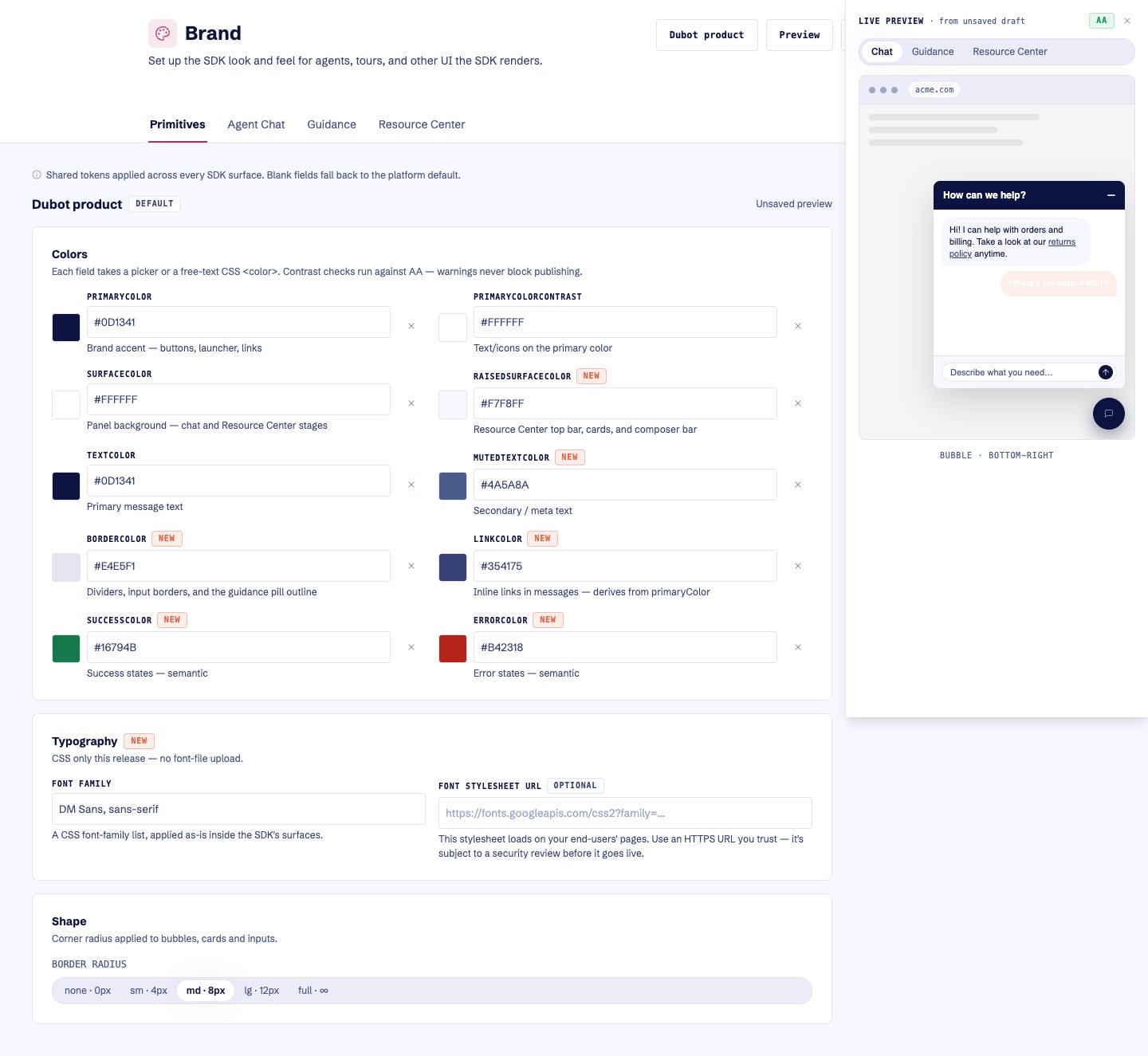 The live preview switches between chat, Guidance, and Resource Center scenes and reports the
current contrast status before publishing.
## What you can configure
* shared foreground, background, border, accent, and status colors;
* assistant and customer message colors;
* composer and launcher colors;
* font family and an external font CSS URL;
* border-radius tier;
* default bubble position;
* Guidance pulse color and motion.
The editor previews wizard, Guidance, and Resource Center scenes and surfaces contrast warnings.
Blank fields inherit platform defaults.
Resource Center-specific appearance comes from the shared primitives. Its title, placeholder,
content, and trigger belong to the Resource Center configuration, not the brand.
## Lifecycle
Brand changes follow the same draft and publish distinction as other versioned entities. Saving a
brand updates Test. Publishing makes that version eligible for Production. Setting a brand as the
workspace default controls which published tokens the SDK resolves.
If no valid published default is available, SDK surfaces fall back field by field to Dubot's
platform defaults.
Follow [Set up your brand](/guides/set-up-your-brand) for the current editor and publish workflow.
The live preview switches between chat, Guidance, and Resource Center scenes and reports the
current contrast status before publishing.
## What you can configure
* shared foreground, background, border, accent, and status colors;
* assistant and customer message colors;
* composer and launcher colors;
* font family and an external font CSS URL;
* border-radius tier;
* default bubble position;
* Guidance pulse color and motion.
The editor previews wizard, Guidance, and Resource Center scenes and surfaces contrast warnings.
Blank fields inherit platform defaults.
Resource Center-specific appearance comes from the shared primitives. Its title, placeholder,
content, and trigger belong to the Resource Center configuration, not the brand.
## Lifecycle
Brand changes follow the same draft and publish distinction as other versioned entities. Saving a
brand updates Test. Publishing makes that version eligible for Production. Setting a brand as the
workspace default controls which published tokens the SDK resolves.
If no valid published default is available, SDK surfaces fall back field by field to Dubot's
platform defaults.
Follow [Set up your brand](/guides/set-up-your-brand) for the current editor and publish workflow.