

What you will do
You will configure the single versioned Resource Center for your workspace, preview it against a route, and publish the complete configuration.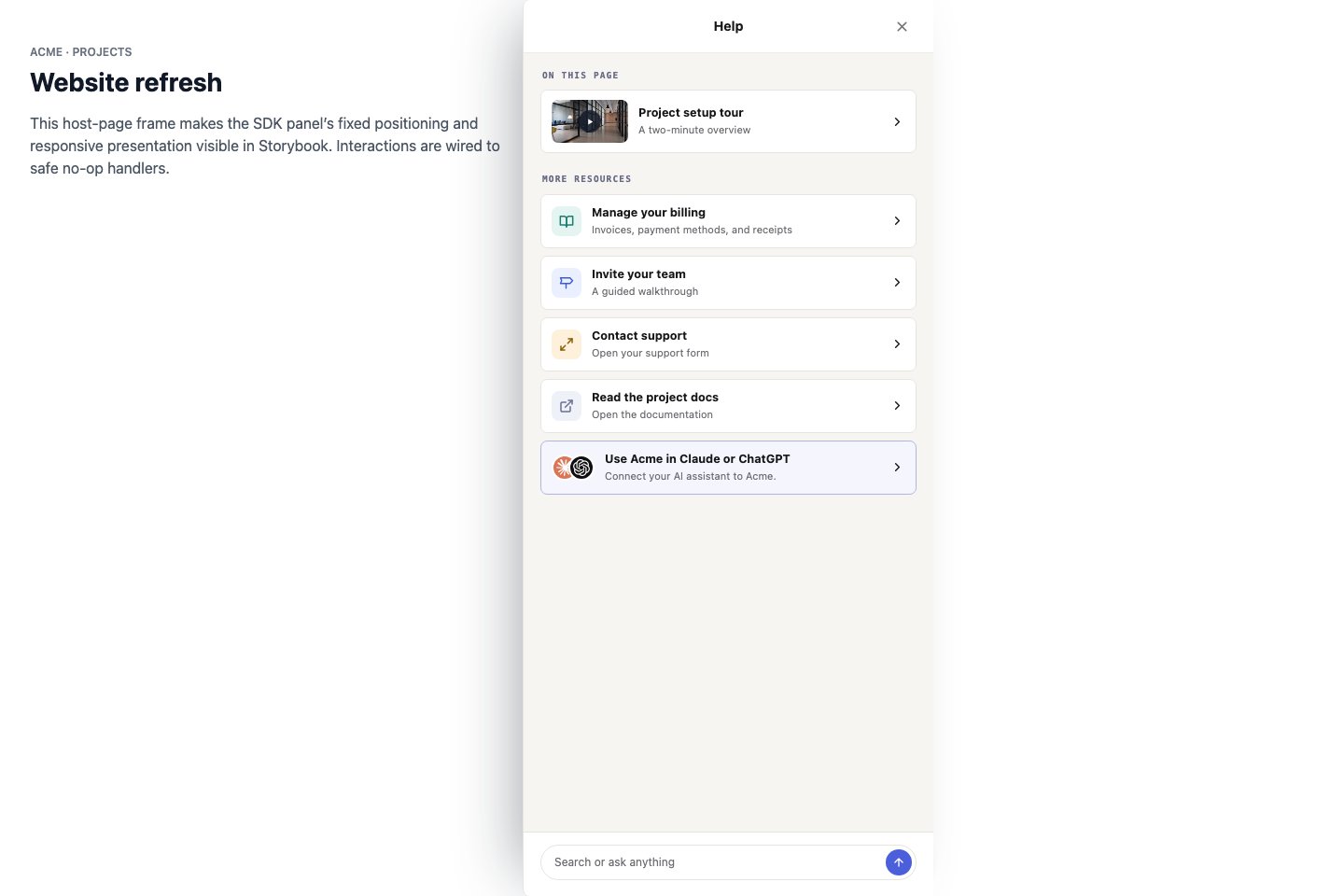
The customer-facing panel keeps curated content, Search, and Ask together.
Configure Content
Open Resource Center and use the Content tab. Add default content under All pages, then create route overrides for exact paths or path prefixes. On a matched route, pinned content appears first and inherited defaults fill More Resources. Overrides can hide inherited content for that route without changing the default list.To match a page and its descendants, enter the route root, such as
/dubot/actions, and select
Prefix. Do not append /*; the route field treats those characters literally. Test the root
page itself in a browser-extension Test session because selecting an override in the editor can
display its cards before the live URL match has been verified.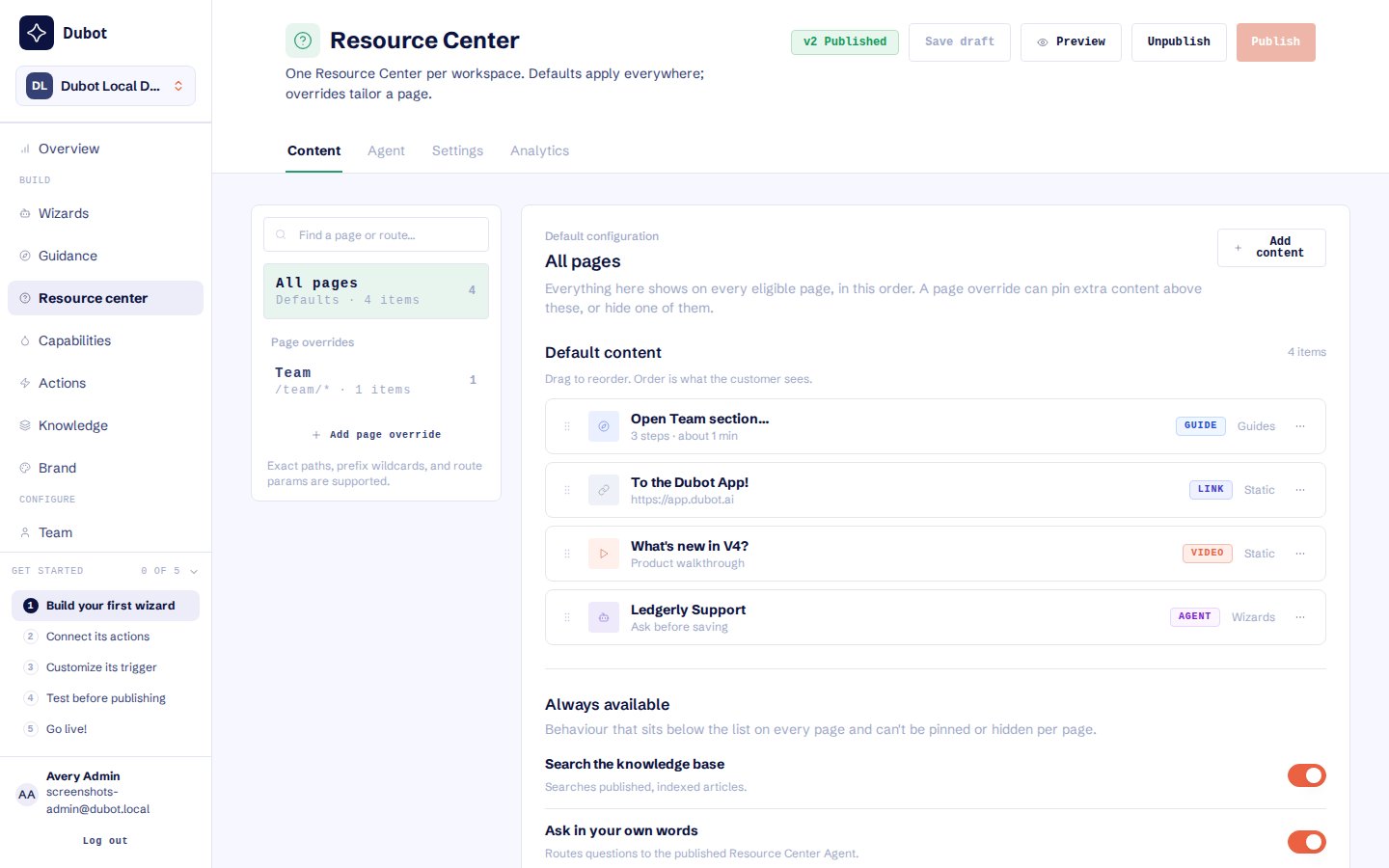
All pages defines the default content; route overrides and Search and Ask availability are configured in the same version.
Use defaults sparingly
Start with one or two resources that are useful almost everywhere, such as the documentation home and a first-value path. Put task-specific help in page overrides instead of growing one long global list. On each route, lead with the smallest set of resources that helps the customer understand the page or complete its likely next task. Do not pin a default resource again in a page override. The default already appears under More Resources. If the default is not useful on that route, hide the inherited item there. Hiding it changes only that page override.Preview resolves the latest saved Resource Center draft. The ordinary customer-facing panel
continues to resolve the published version. If page-aware content appears in Preview but not on
the product page, check whether the Resource Center is Pending before changing its route rule.
Enable Search and Ask
Search and Ask are independent availability controls below the contextual content.- Search the knowledge base searches the delivered workspace knowledge corpus and returns ranked article cards.
- Ask in your own words opens in-panel chat with the reserved Resource Center Agent.
Configure Settings
In Settings, set display copy, the Search/Ask placeholder, and one trigger: Floating, Injected, Auto-open, or Programmatic. Configure Resource Center callback keys, labels, and descriptions. Callback cards invoke matching host handlers registered throughDubot.init({ resourceCenterCallbacks: [...] }); they are separate from agent-callable actions
and are not advertised as tools.
Preview, test, and publish
1
Preview the content layout
Use Preview to inspect the selected override’s cards, ordering, and inherited content.
Selecting an override does not prove that the product URL matches it. Verify route matching,
Search, Ask, and callback execution in the browser Test session below.
2
Test dependencies
Confirm referenced articles are indexed, readable, and returned by a real Search. Check that
guides, callbacks, connectors, and the reserved agent’s capabilities and actions are available
in Test; publish the versioned dependencies needed for Production before the Resource Center. A
guide that contains an Indicate step is Test-only today and cannot be used as a working
Production destination.
3
Test on a product page
From the Agent tab, start a Test session for a representative route. Open the Resource
Center and exercise its content, Search, Ask, and any callback cards with the saved draft. For
every Prefix override, test both its root route and one descendant route when one exists.
4
Publish
Use the Resource Center page’s Publish action. It publishes the versioned Resource Center
and its embedded Ask configuration together. Saving a draft does not make it available in
Production.